Overview
PivoHub has built-in support for barcode scanning across numerous key modules and interfaces, greatly simplifying the time needed to locate a product across large catalogs or inventories. Whether checking stock, building an order, or updating pricing — a scan replaces manual search in seconds.
Beyond the speed benefit for your own team, barcode scanning in PivoHub is a shared capability. The more products your catalog has mapped to their UPC or EAN codes, the more useful scanning becomes for every connected partner and buyer on the platform. Investing in barcode coverage is an investment in the efficiency of your entire network.
PivoHub supports two forms of scanning:
- Camera-based scanning using your device's integrated camera or an attached webcam
- Laser-based hardware scanning using a dedicated barcode scanner device
Where you can use it
The icon to look for: 
The following modules support barcode scanning:
- Seller marketplace: The visual shopping experience can filter products matching a barcode scan. Quickly add these products to the cart.
- Sales order form: The advanced order form will match product formats to speed up the addition of new products to an order, or to process a return.
- Inventory list: Match all product formats and distribution formats matching the scanned code. Quickly isolate the relevant inventory line entries to maintain the related stock.
- Producer product list: Skip down to the correct product in order to review their description, or add a new distribution format.
- Pricing & availability: Isolate visibility and pricing rules for a particular product.
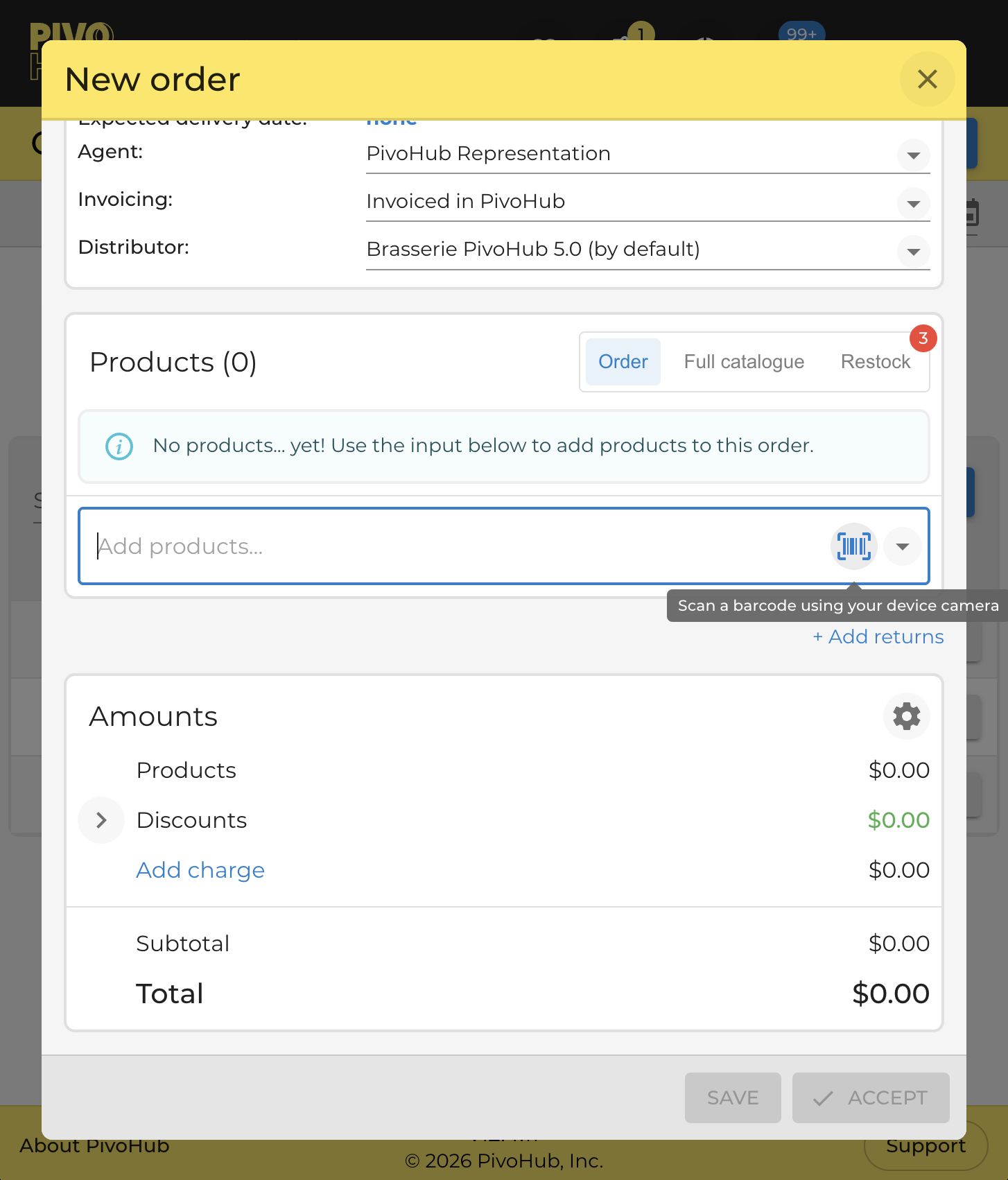
Scan to fill in a form field
Within the modules above, any text input field that displays the barcode icon also accepts input via scan. During a creation or modification flow, scanning directly into a field saves time when entering new product codes without switching between the camera and the keyboard.
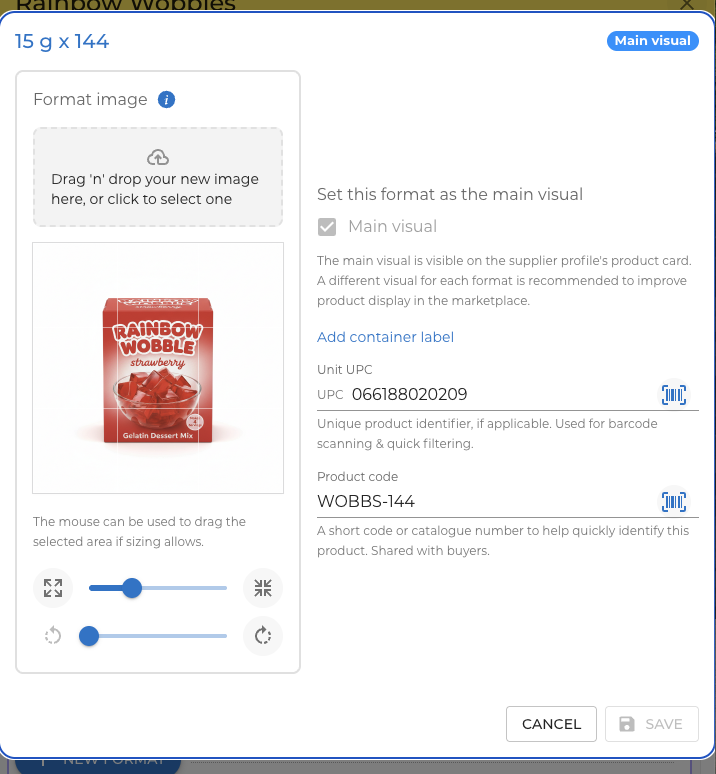
How scanning works
Camera scanning
PivoHub leverages the latest browser capabilities to directly use your camera to capture a barcode. Any camera your browser currently supports can be used for scanning. The process is simple: point the camera, with sufficient lighting, at a barcode and it will be detected automatically. What happens after detection depends on which module you're using.
To initiate a scan, you will need:
- Be viewing a module with barcode scanning support. This is denoted by the presence of the barcode icon.
- Have a camera accessible to your phone or computer
- Have a barcode nearby, preferably in arm's reach, with sufficiently bright light for the camera to capture the fine detail of the barcode's lines
- A well-mapped set of products which have associated unique identifiers such as UPC or EAN.
Scanner controls
While scanning, a small set of additional actions may be available within the camera view. Two controls are worth knowing:
Mirror image: If you are scanning with a webcam (such as a built-in laptop camera), the preview image may appear horizontally reversed, which makes aiming at a barcode counterintuitive since all physical movements appear backward. A flip button is available in the scanner toolbar to mirror the image and restore natural directional movement. This does not affect scan accuracy — only the preview orientation.
Continuous scanning mode: Available in the inventory and distributor products modules, continuous mode keeps the camera active after a successful scan rather than closing it. Each detected barcode is registered and tallied, allowing you to move quickly from one product to the next without reopening the scanner between scans. This is particularly useful when doing a physical count or verifying stock across a shelf. Tap the close button when finished to see the full list of captured codes.
Using a dedicated hardware scanner
PivoHub supports laser-based hardware scanning of barcodes. The devices supported depends on how they interact with the web browser (where PivoHub is running). As an example, the Honeywell CT45P works without any special set up.
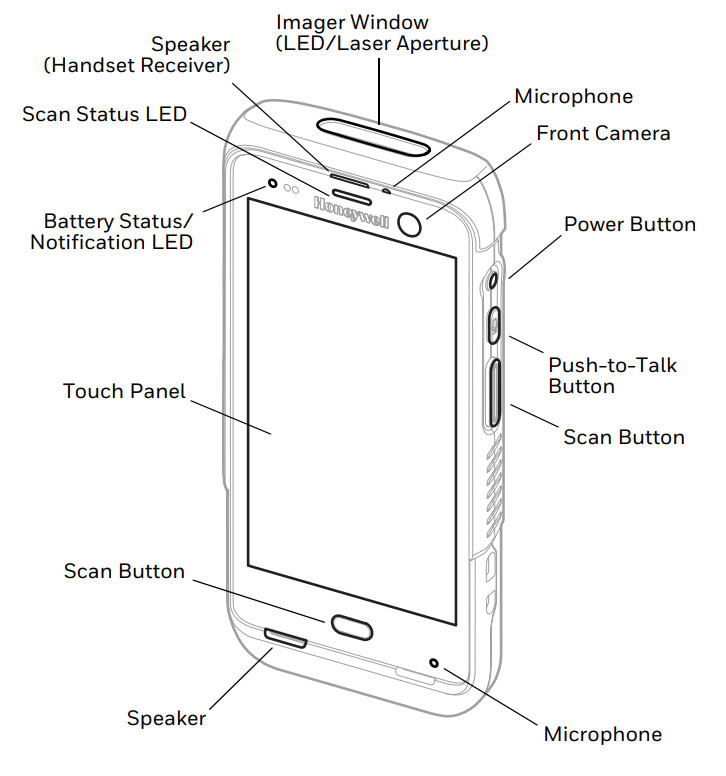
Using the Honeywell device, or a similar device, you don't need to invoke the camera mentioned above. On any page where the barcode icon is present, simply use the hardware scanner, typically via the dedicated button on the side of the device. Any scan executed on a page with the barcode icon will be handled as a successfully captured barcode. The action taken after a scan depends on the module or page open, see above.
In practical testing sessions, we've observed very performant scans using the hardware button and laser-driven barcode scanner. Since this avoids the need to invoke the device camera or the device keyboard, it can be an efficient way to execute many repeat operations in the PivoHub interface.
Multiple scan targets on the same page
If a page displays more than one barcode icon, hardware scans are delivered to the first one. Because the scanner injects data directly without an explicit selection by the user, PivoHub does not have a way of knowing which input was intended. In these situations, use the camera scanner instead to target the specific input you desire, or type the code, or use the other complementary filters available.
Mapping your products
The scanning feature is only as good as the barcode data behind it. Taking the time to map your products to their barcodes benefits both your company and your connected partners — and all buyers can shop with a barcode scanner to quickly retrieve a product format in their marketplace without needing any special permission.
The following modules include a dedicated mapping mode to help you capture barcodes and assign them to product formats:
- Products list
- Inventory list
Unit barcodes vs packaging barcodes
In some cases, the unpackaged product has a barcode, but so does the retail packaging it is sold in. PivoHub supports and encourages capturing both. The Pack UPC should be assigned the value of the barcode on the retail packaging, and the Unit UPC should be given the barcode value matching the unpackaged product. UPC or EAN are supported.
When scanning, so long as the data is provided, we will match either the unit UPC or the retail pack UPC. There can be some advantages to scanning the unpacked product, as it can reveal other distribution formats that may be relevant to your process.
Capturing unmapped barcodes on the fly
When a scan (or a manually typed UPC) does not match any known product, PivoHub does not simply return an empty result. Instead, an assignment alert appears, offering you the opportunity to map that barcode to an existing product format on the spot. This turns a dead end into a data-entry step, and each barcode captured this way improves coverage for all future scans.
Note that manually typing a UPC into a supported search field triggers the same assignment flow — a camera or hardware scanner is not required. This makes it easy to capture barcodes even when scanning is not practical, for example when entering data at a desk from a printed list.
Supported code formats
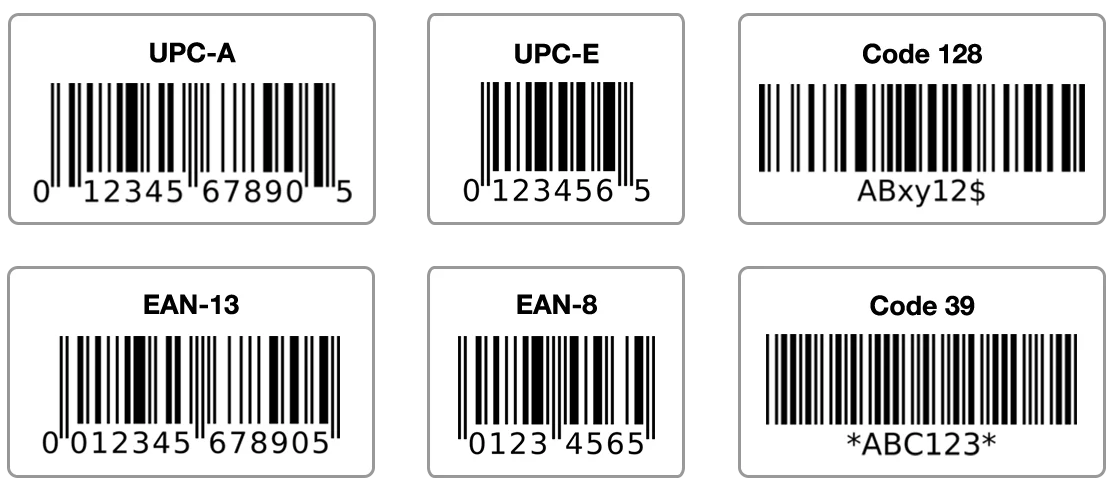
UPC-A and UPC-E (compact form for smaller packages), and EAN-13 and EAN-8, are the primary formats, covering the vast majority of codes printed on individual product units.
For outer and case packaging — the corrugated boxes and shipping units commonly handled in a distribution context — GTIN-14 (Global Trade Item Number) and ITF-14 codes are also recognized. Scanning a case code is often faster than locating the individual unit when receiving or auditing stock.
Code 128 and Code 39 are supported for alphanumeric codes, which appear frequently on shipping labels, logistics documents, and internally generated labels.
Simple QR codes are recognized as a plain text value. QR codes containing a website address are ignored, as they are not product identifiers and may cause accidental scans of marketing materials.
For formats that encode multiple data fields within a single code — such as those carrying a lot number, expiry date, or serial number alongside the product identifier — contact us to discuss support for your use case.
Troubleshooting
I'm having difficulty getting a good scan.
If the lighting is poor, or the quality of the camera is poor, it may be more difficult to get a quality reading of the barcode. Some product materials, such as aluminum, may cause reflections which complicate the scanning process.
The barcode is scanning correctly, but I'm not getting the desired product format.
For the entire process to be successful, the concerned products in the PivoHub database must have been mapped to their UPC or EAN codes. See the Mapping your products section for more information. If you're not the owner of the products, you may need to contact your partner to ensure the products are up to date.
I don't see the barcode icon on the modules mentioned.
For sellers, the barcode scanner is an opt-in add-on. If you wish to add it, contact your PivoHub account manager.
Was this article helpful?
That’s Great!
Thank you for your feedback
Sorry! We couldn't be helpful
Thank you for your feedback
Feedback sent
We appreciate your effort and will try to fix the article