Overview
PivoHub includes built-in barcode scanning in your marketplace. Point your camera at any product label and the catalog filters instantly to the matching products — no manual searching required. This can considerably shorten the time it takes to locate products and get your cart filled.
Barcode scanning is available to all buyers at no additional cost.
PivoHub supports two forms of scanning:
- Camera-based scanning using your device's integrated camera or an attached webcam
- Laser-based hardware scanning using a dedicated barcode scanner device
If a camera or scanner isn't available, you can get the same result by typing a product identifier — SKU, UPC, EAN, or retail pack code — directly into the search bar. See Manual code entry below.
Where you can use it
Barcode scanning is available in the marketplace. Scanning a product code in the keyword search bar filters the catalog to matching products instantly, which you can then add to your cart.
Manual code entry
When scanning isn't practical — working at a desk, entering codes from an invoice, or using a device without a camera — you can type a SKU, UPC, EAN, or retail pack code directly into the search bar. The results are identical to scanning.
Scan or type into a form field
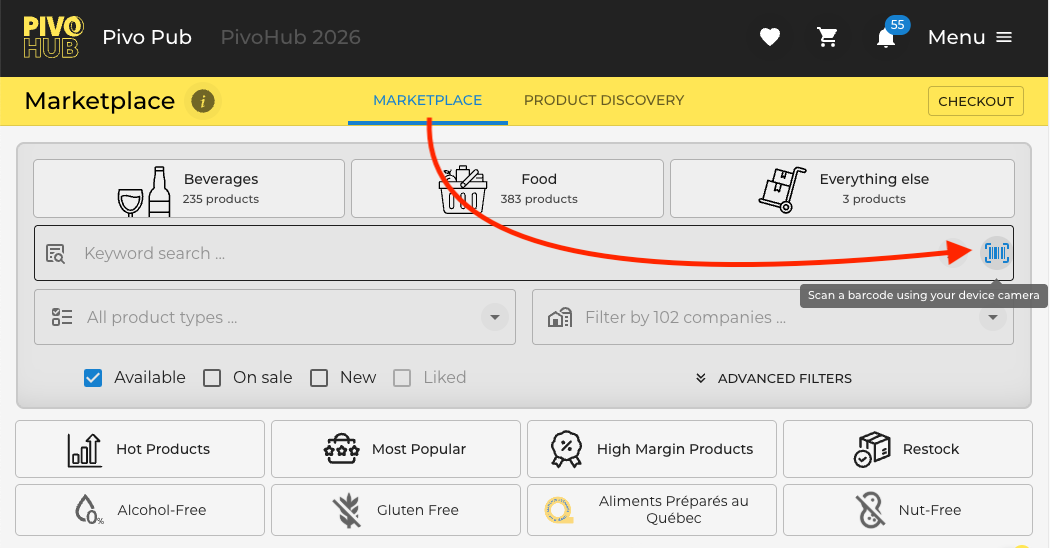
The primary text search field in the marketplace displays the barcode icon which indicates that it accepts both scanned and manually typed codes.
Look for this icon, and click it to invoke the camera in a scanning mode.
How scanning works
Camera scanning
PivoHub uses your browser's camera access to detect barcodes. Point your camera at a barcode with sufficient lighting and it will be detected automatically.
To initiate a scan, you will need:
- Have a camera accessible to your phone or computer
- Have a barcode nearby with sufficiently bright light for the camera to capture the fine detail of the barcode's lines. This even works by scanning a computer screen which may be showing a list of barcodes from another source.
Scanner controls
While scanning, a small set of additional actions may be available within the camera view. One in particular is worth knowing:
Mirror image: If you are scanning with a webcam (such as a built-in laptop camera), the preview image may appear horizontally reversed, making it counterintuitive to aim at a barcode since all physical movements appear backward. A flip button is available in the scanner toolbar to mirror the image and restore natural directional movement. This does not affect scan accuracy — only the preview orientation.
Using a dedicated hardware scanner
PivoHub supports laser-based hardware scanning. The devices supported depends on how they interact with the web browser where PivoHub is running. As an example, the Honeywell CT45P works without any special setup.
Using the Honeywell device, or a similar device, you don't need to invoke the camera mentioned above. On the marketplace where the barcode search is present, simply use the hardware scanner — typically the dedicated button on the side of the device. Any scan executed on a page with the barcode icon will be handled as a successfully captured barcode.
When a product isn't found
Barcode coverage depends on your suppliers having mapped their products to their UPC or EAN codes. When a scan does not match any known product, PivoHub will let you know the code was read correctly but the product may not yet be tagged in the system.
In that case, you can use the Request a UPC feature to send a prepared message to one of your suppliers, including the scanned code. This notifies the supplier that the product needs to be mapped, in order to facilitate future scanning efforts, and to use it directly in your POS (Point of sale) system.
Supported code formats
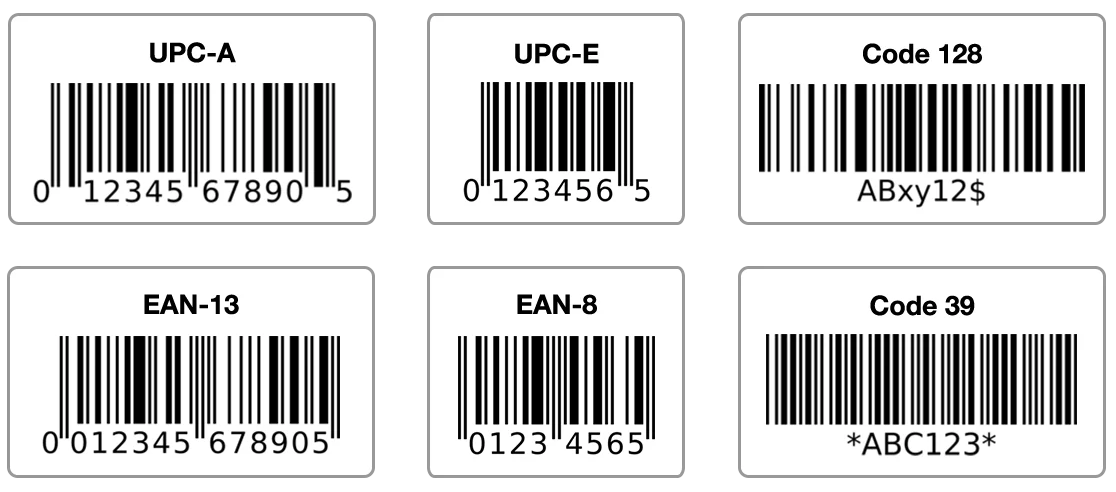
UPC-A and UPC-E (compact form for smaller packages), and EAN-13 and EAN-8, are the primary formats, covering the vast majority of codes printed on individual product units.
For outer and case packaging — the corrugated boxes and shipping units commonly handled in a distribution context — GTIN-14 and ITF-14 codes are also recognized.
Simple QR codes are recognized as a plain text value. QR codes containing a website address are ignored, as they are not product identifiers.
Troubleshooting
I'm having difficulty getting a good scan.
If the lighting is poor, or the quality of the camera is poor, it may be more difficult to get a quality reading. Some product materials, such as aluminum, may cause reflections which complicate scanning. Try adjusting the angle or finding better lighting. As an alternative, you can always type the SKU, UPC, or EAN directly into the search bar to get the same result without scanning. Even typing a starting portion of the code will likely yield the correct results.
The barcode is scanning correctly, but I'm not getting the desired product.
Barcode coverage depends on your suppliers having mapped their products to UPC or EAN codes in PivoHub. Use the Request a UPC feature to notify your supplier that the product needs to be tagged. See "When a product isn't found" above.
Was this article helpful?
That’s Great!
Thank you for your feedback
Sorry! We couldn't be helpful
Thank you for your feedback
Feedback sent
We appreciate your effort and will try to fix the article