​Adding a customer

Modified on Tue, 23 Dec, 2025 at 11:55 AM

Discover how to add a new customer / account on Pivohub by following these detailed instructions.

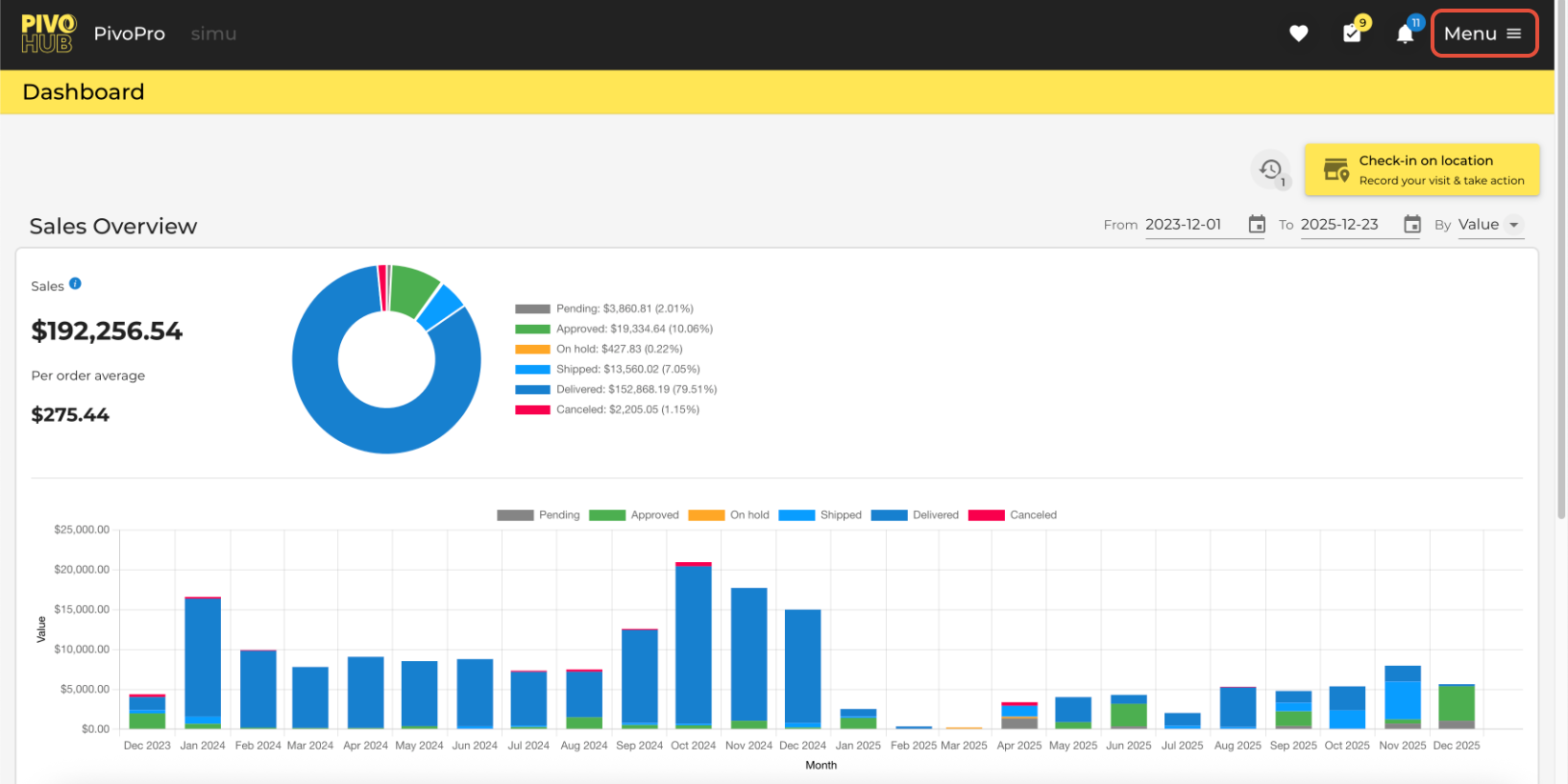
Go to pivohub.co
01
Introduction

From accessing the "Clients" tab to saving the information, this guide will walk you thru each step of the process.

02
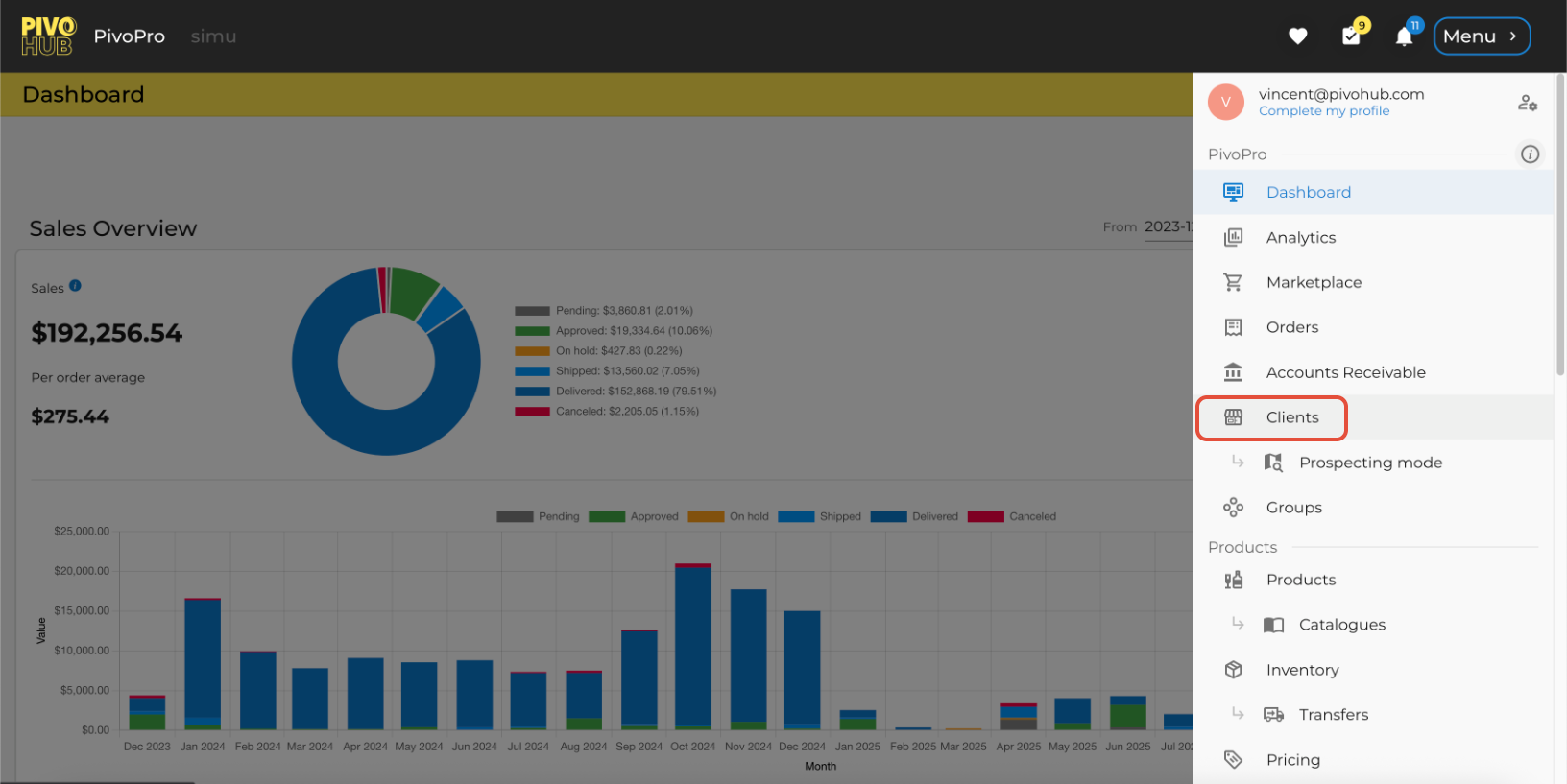
Clients module

Access the "Clients" tab.

03
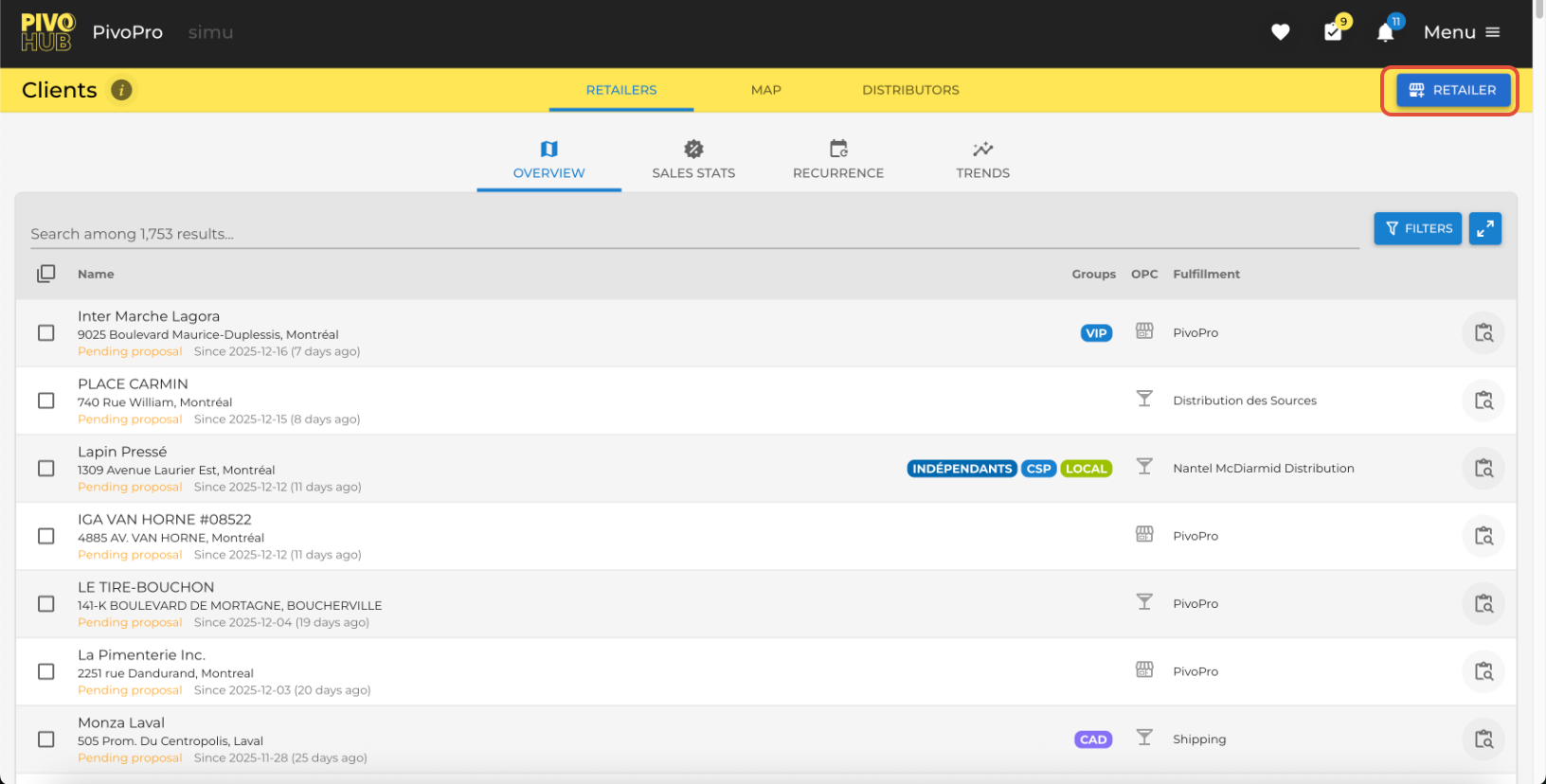
Click on "Retailer"

Select the "Retailer" option.

04
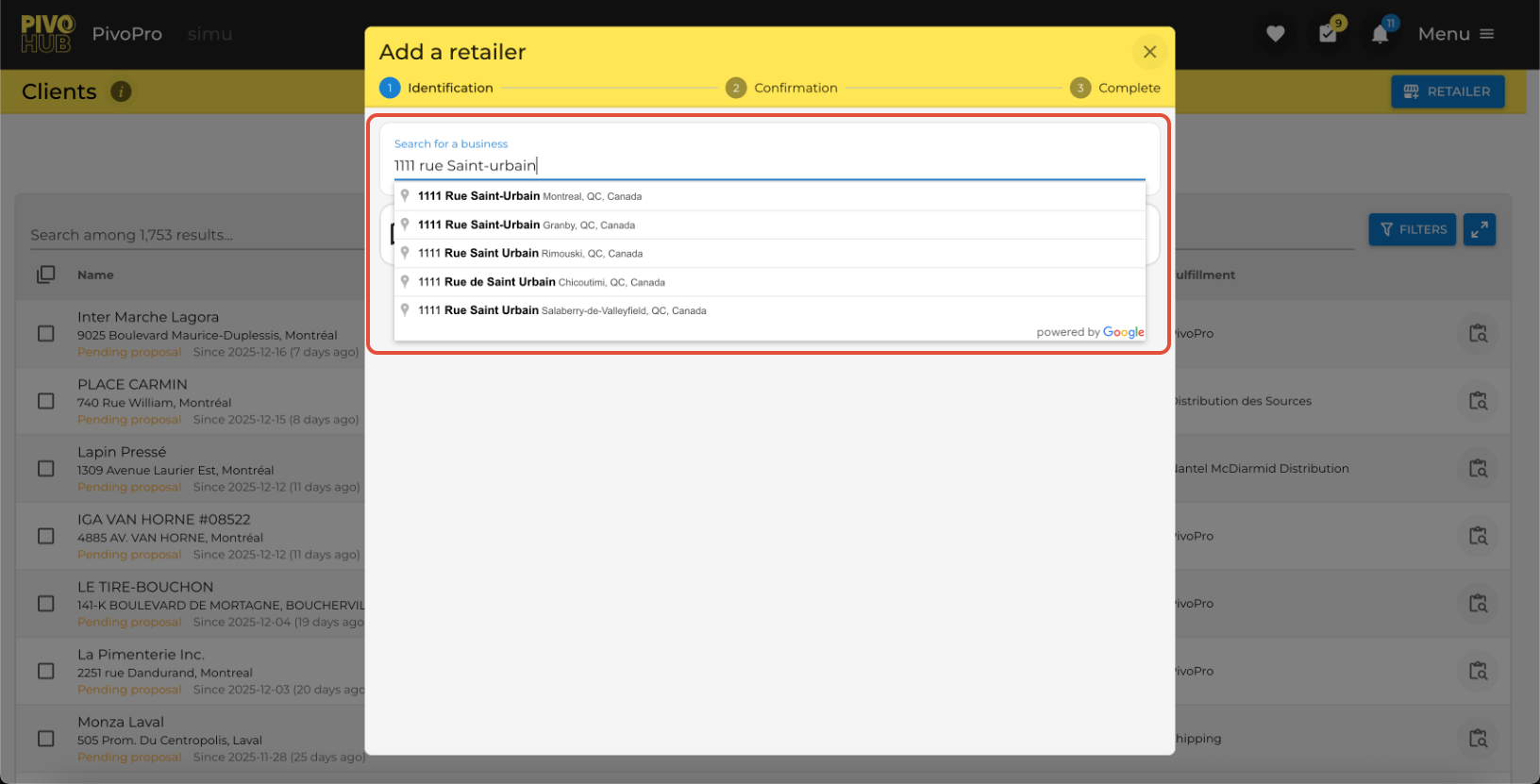
Click on "Search for a business"

Enter a civic address in the field provided for this purpose.

05
Click on "This is the correct address!"
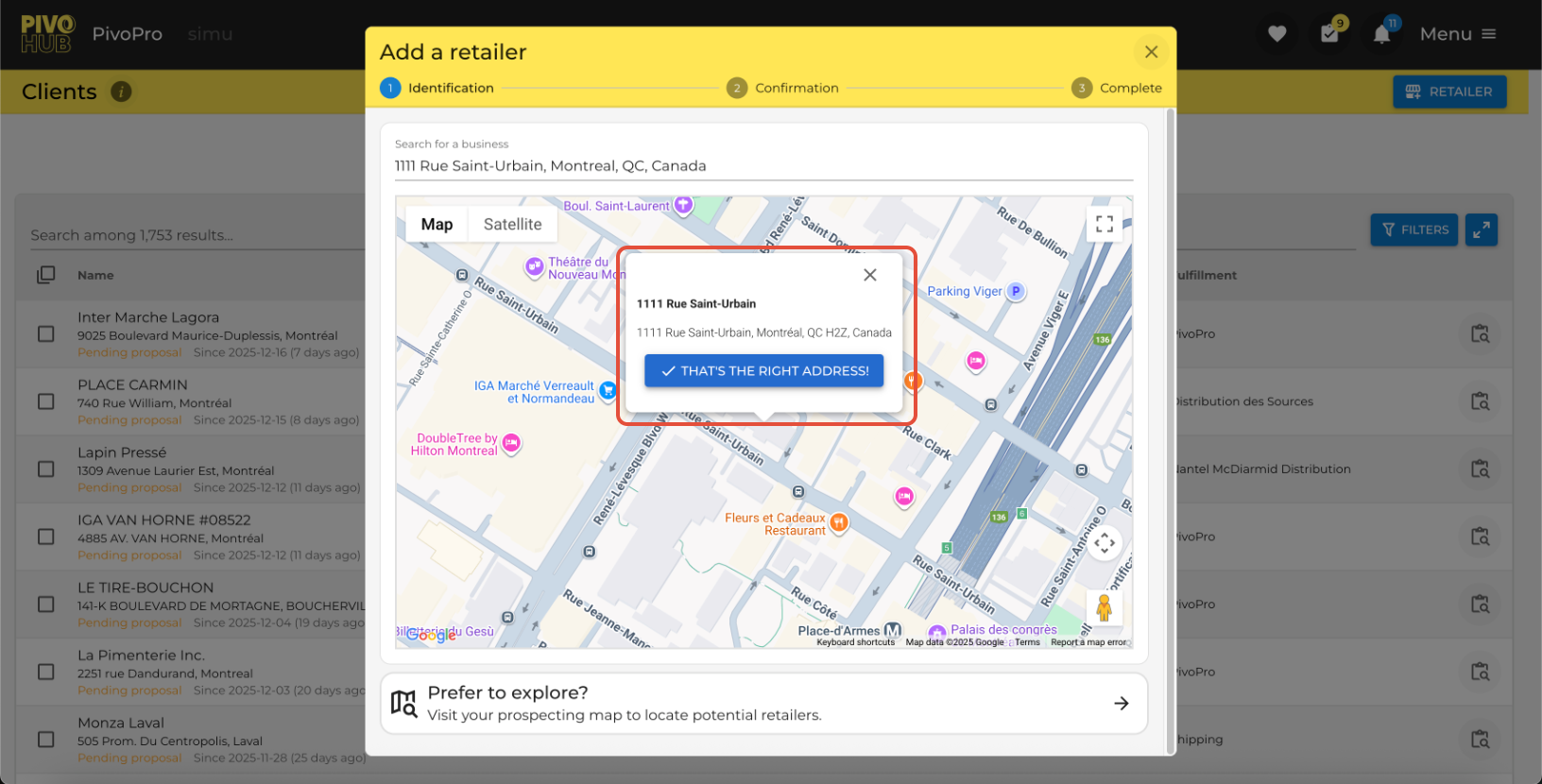
Confirm by clicking on "This is the correct address!".

06
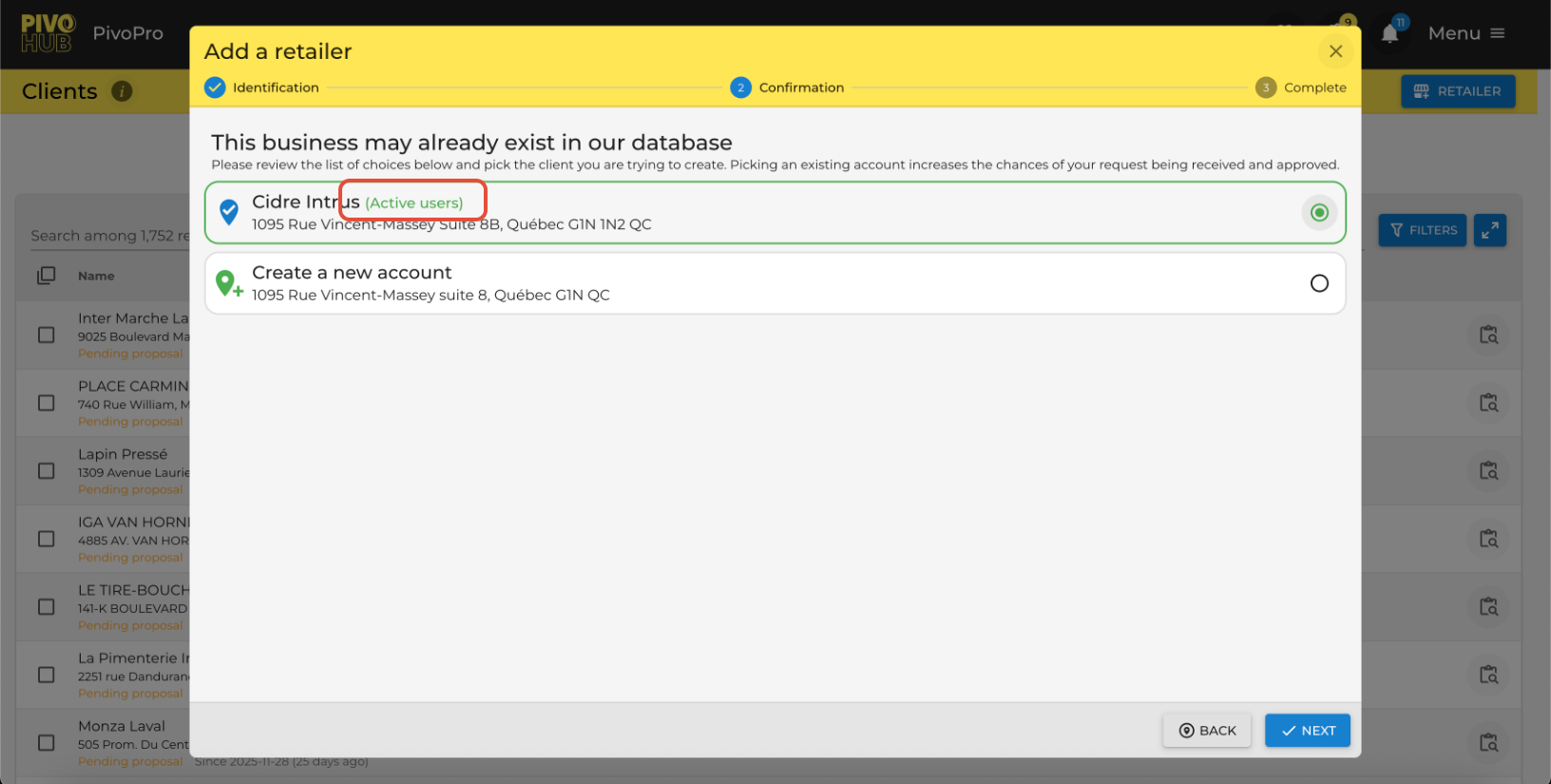
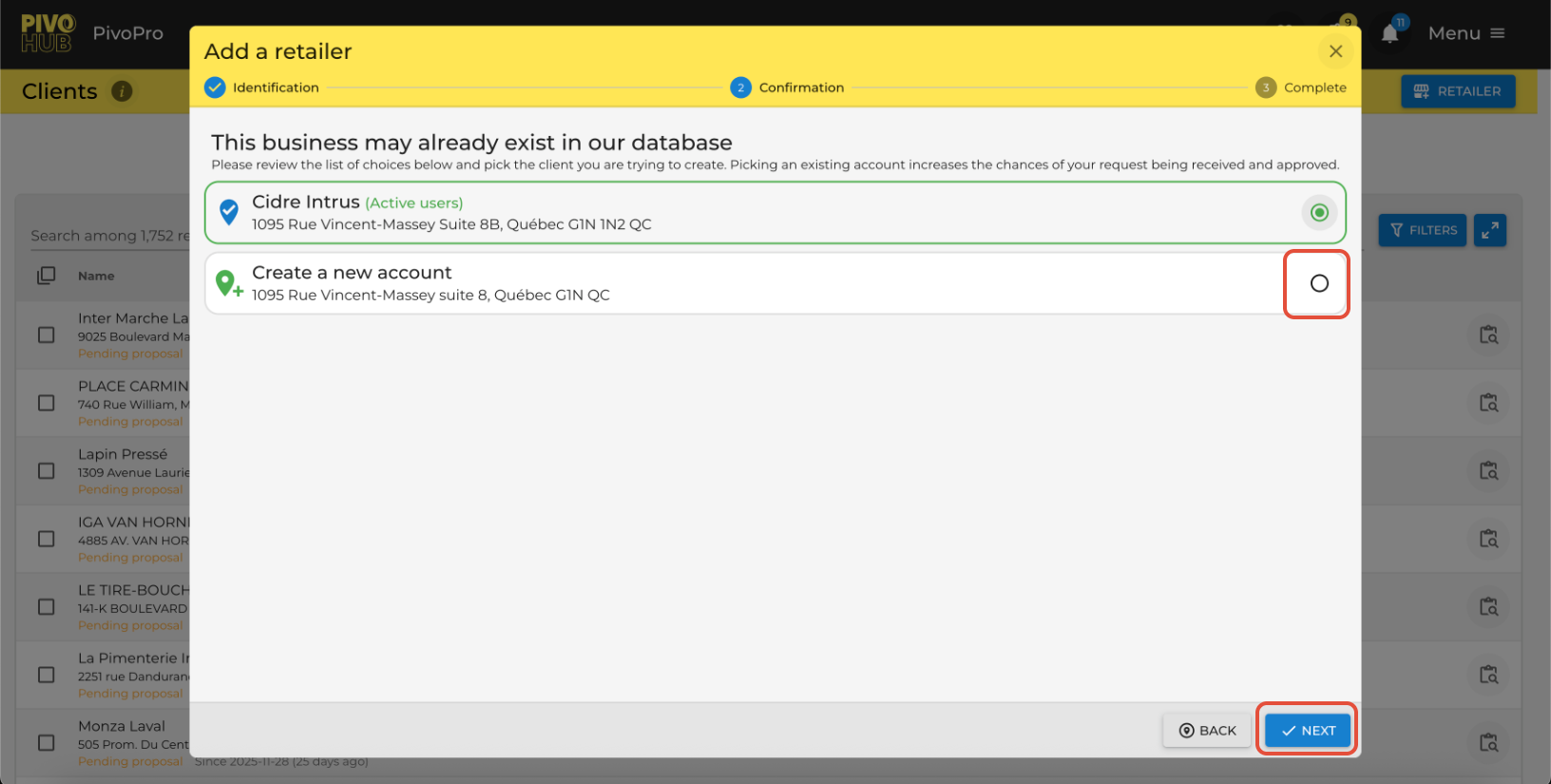
Active users

A mention of active users means that the client has access to their retail account. If they accept your request, they will be able to place orders independently and communicate with you via PivoHub.


07
Select the best proposed retailer you wish to add
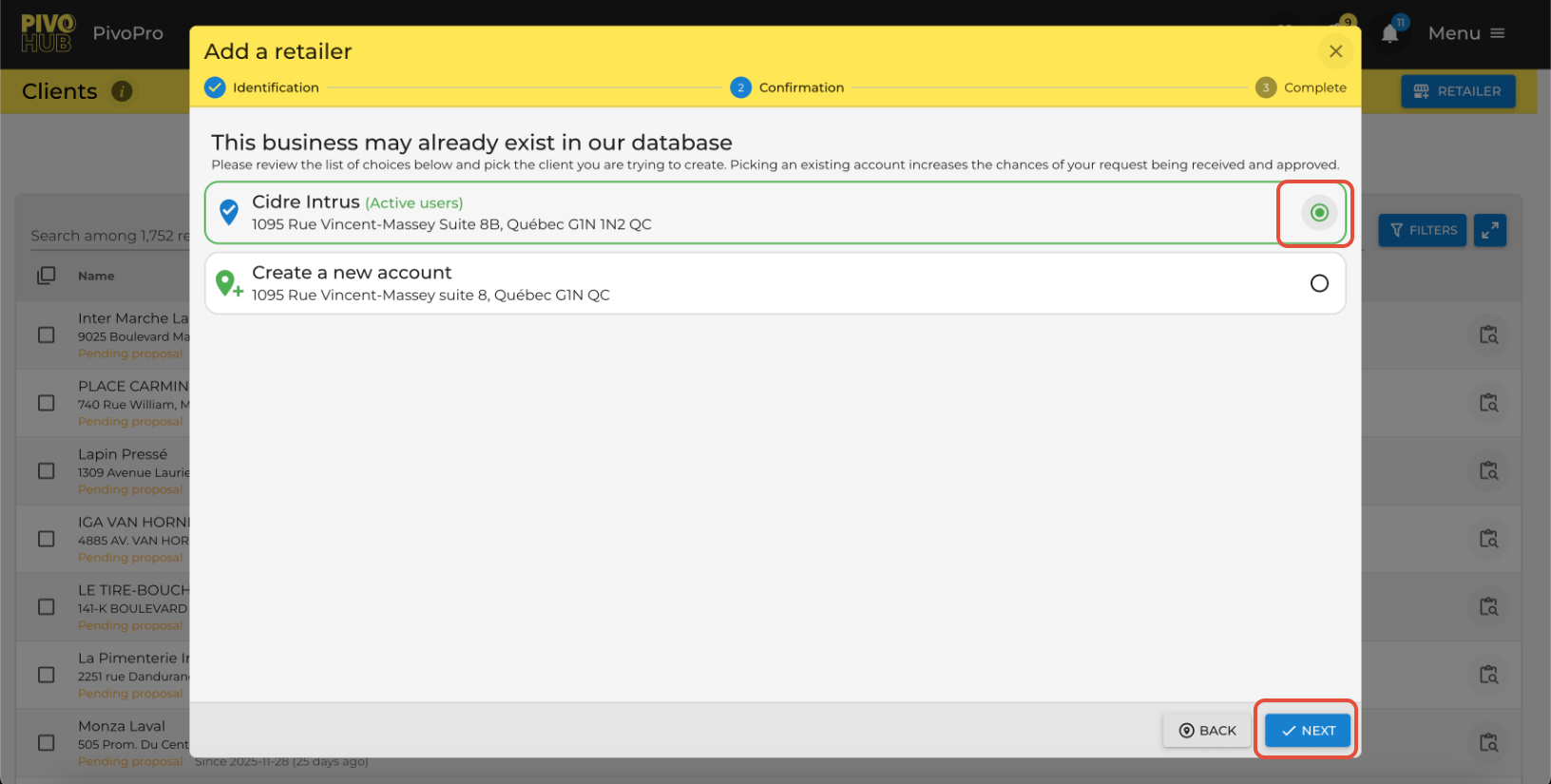
 Select the best proposal and click “NEXT.”

08
Creation of a new client account

You can also create a new account by clicking on "Create a new account" if your commerce is not visible or suggested.

09
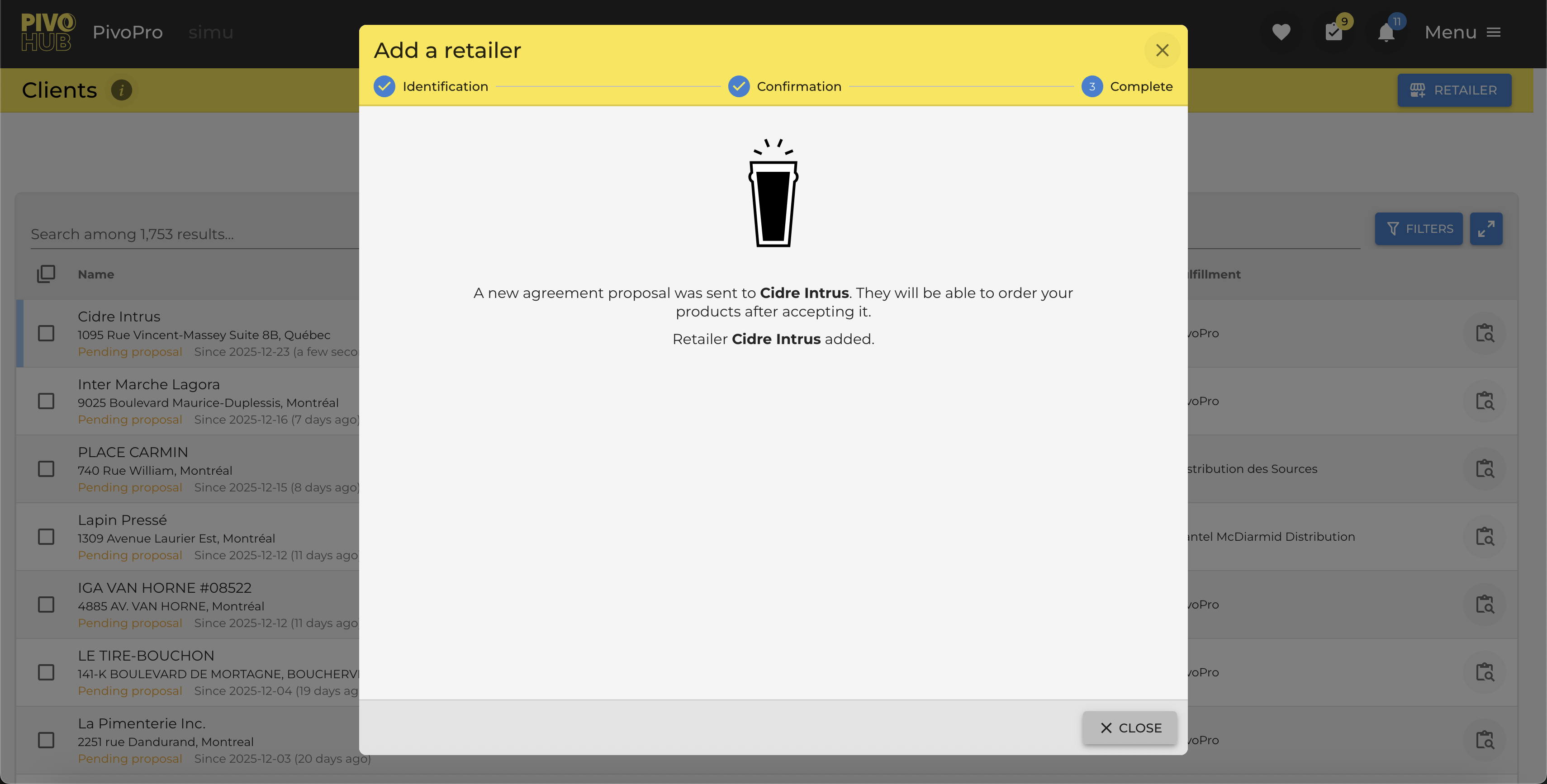
Press the "CLose" button.

Once the client has been chosen, a proposal will only be sent if it is active on the platform. In every scenario, the addition of the client file will be visible in your client module, enabling you to start the parameterization or create an order.


10
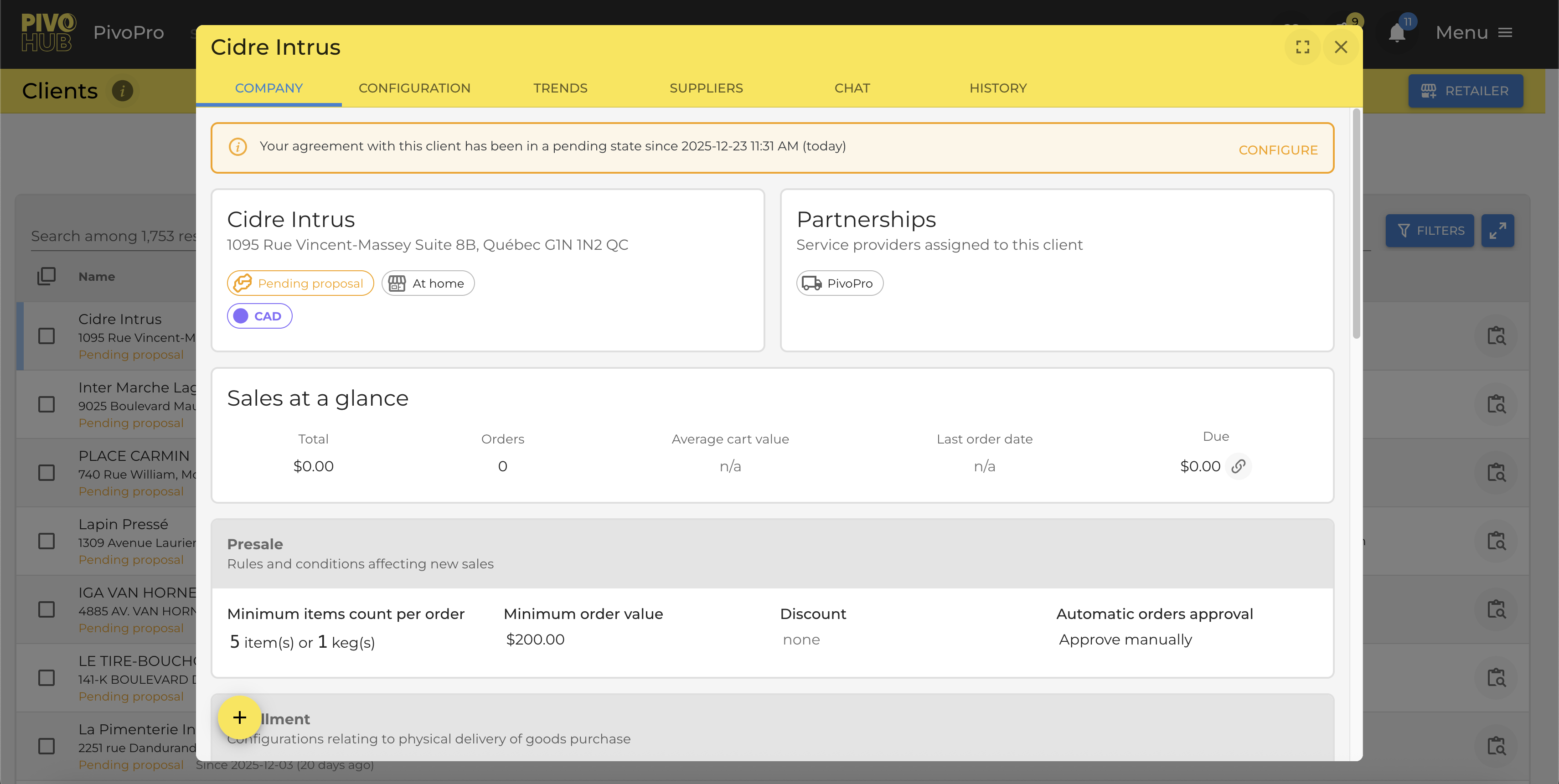
Check the client's file you just added

Review the profile settings for the retailer you just added.


This guide explains how to add a client to Pivohub. From searching for a business to saving data, all necessary steps are detailed to make the process easier.

Was this article helpful?

That’s Great!

Thank you for your feedback

Sorry! We couldn't be helpful

Thank you for your feedback

Let us know how can we improve this article!

Select at least one of the reasons
CAPTCHA verification is required.

Feedback sent

We appreciate your effort and will try to fix the article