Both buyers and sellers on PivoHub have access to shared documents that support an order and its transfer of goods. One such document is the Proof of Delivery — typically a signed scan or photo of the delivery invoice or purchase order, captured at the time of delivery.
Buyers may want to consult this document for their own records. Sellers and their distributors should be familiar with where it appears, as buyers may reach out with questions.
Who
Whether a proof of delivery is provided depends on the seller. If they self-distribute, the document is their responsibility; if a third-party distributor handles the delivery, it falls to them. Not all sellers or distributors offer this as part of their service — if yours does, expect it to appear toward the end of the fulfillment process.
When
Proof of delivery documents are generally added shortly before or after an order is marked as delivered — in some cases, several days after. This accounts for the time a delivering company may need to validate any discrepancies before closing out the process.
Where
Open your Orders module from the main menu. Both buyer and seller order lists include a Delivery proof filter (Yes / No), which quickly isolates orders that do or do not yet have a proof of delivery attached.
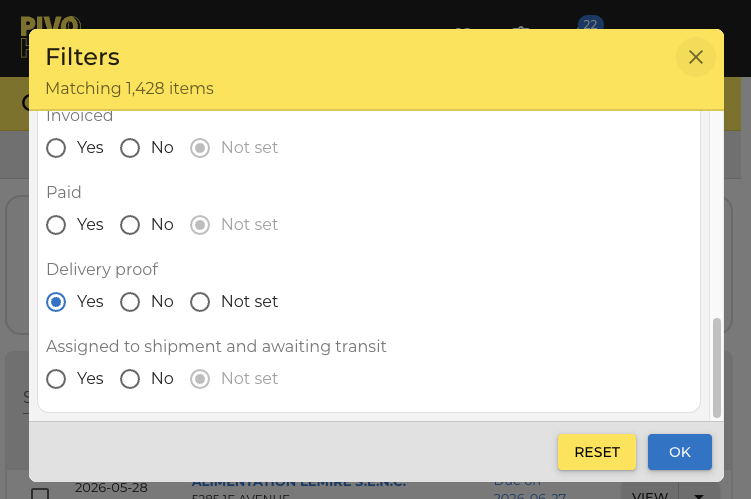
Note: an order may still show a Shipping status and already have its proof of delivery available. In other cases, the document arrives around the time the order is marked as delivered.
How
Open the relevant order and navigate to the Documents tab. If a proof of delivery has been provided, it appears there as its own Proof of delivery tab alongside any other available documents (such as the purchase order or invoice).
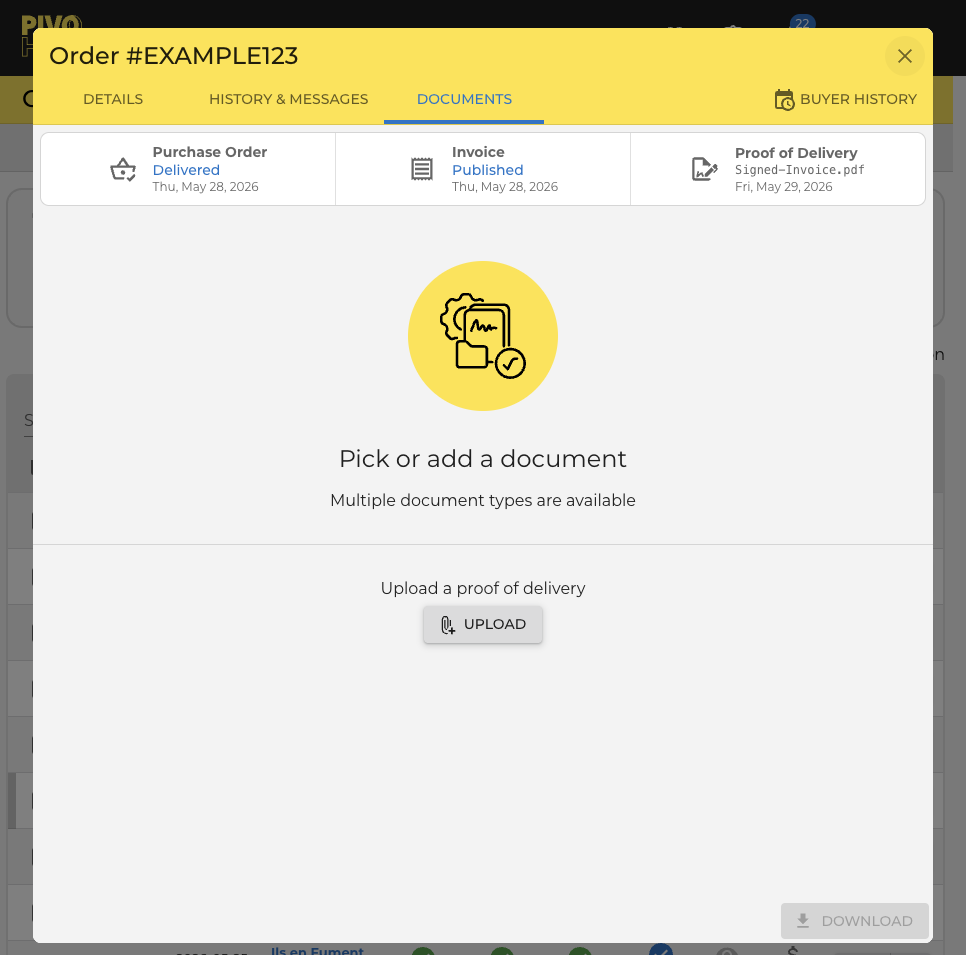
If the tab is absent, the document has not yet been uploaded — return later to check. Once provided by the delivering company, it will appear here automatically.
You can download the document (image or PDF) directly from this tab for your own records.
If you are the distributor on the order, you can also upload the proof of delivery from this same tab using the Upload button.
If you are unsure whether a proof of delivery will be provided for your order, contact the seller or the distributor listed on the order's Details tab, where all participating companies are shown. You can also use the order's Messages tab to reach the seller or distributor — messages are shared between all parties on the order and saved with its history.
Was this article helpful?
That’s Great!
Thank you for your feedback
Sorry! We couldn't be helpful
Thank you for your feedback
Feedback sent
We appreciate your effort and will try to fix the article