This guide will walk you through how to assign a user to a custom role based on your needs.
Here is an example with a sales representative whose access to PivoHub you would like to restrict, so they can focus on sales-oriented modules.
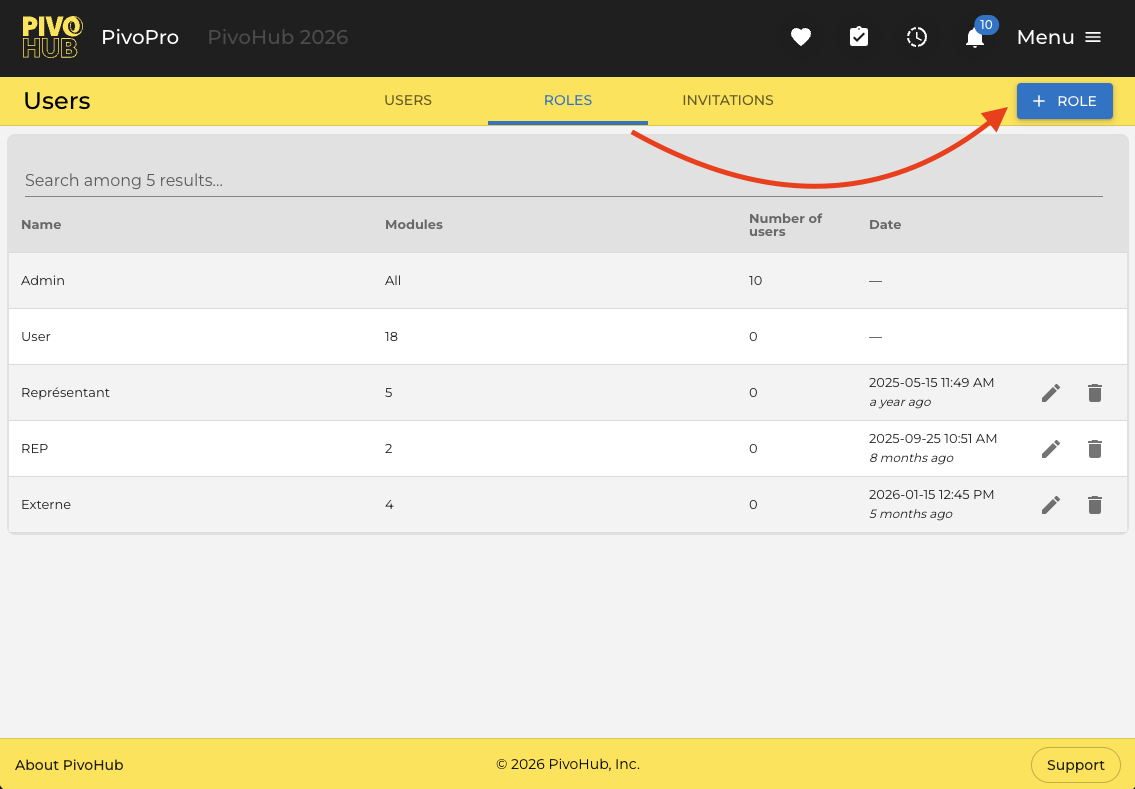
1- In the "Users & Roles" module under the "Role" tab, click on + ROLE in the upper right corner of the page.
2- Enter the name of this role in the Name* field.
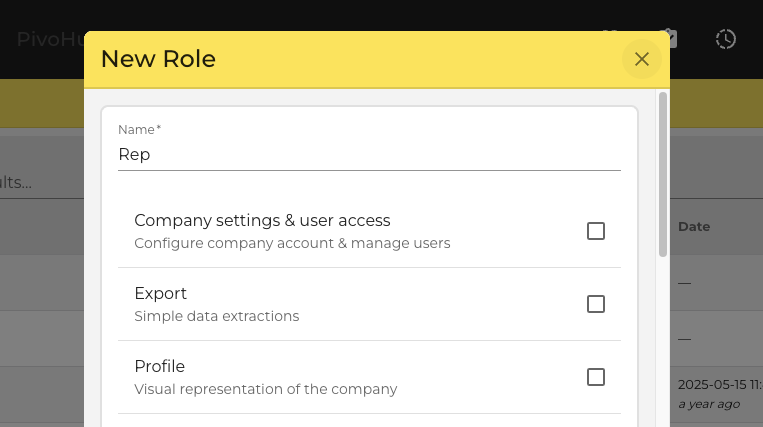
3- Select the modules the user will have access to.
4- By enabling the "Orders – Sales" module, you will have additional configuration options allowing the user to access the module in "Order creation only" mode, ensuring that no changes can be made to orders they did not create.
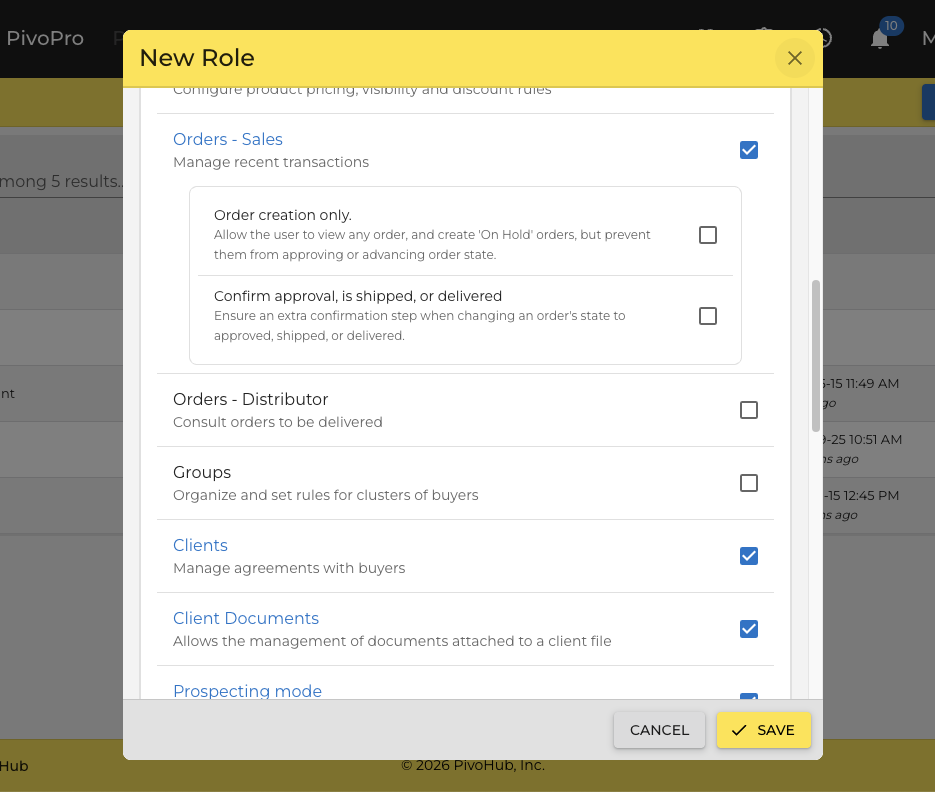
5- Once you are done, click "Save"; this will close the window.
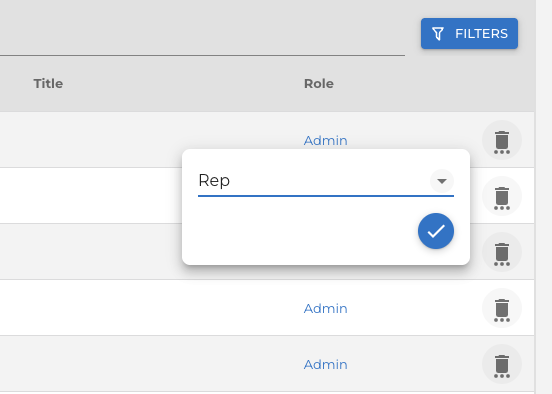
6- All that remains is to return to the Users list, and assign the user to the new role you created and click the checkmark.
This guide has walked you through how to assign a user to a new role. Thank you!
Was this article helpful?
That’s Great!
Thank you for your feedback
Sorry! We couldn't be helpful
Thank you for your feedback
Feedback sent
We appreciate your effort and will try to fix the article