Encourage your clients to place their orders independently by adding a button to your email signature that redirects to your PivoHub page.
Download one of the images attached to this guide or with this link. To download them, simply right-click on the desired image and select the "download" option.
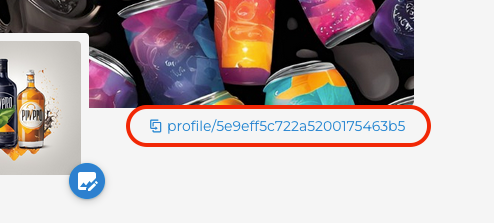
1. In the "Profile" tab of your PivoHub account, click on the link that appears under the banner on the right side of the screen to copy the link to your profile page.
2. Add the button image to your email signature.
Add a PivoHub signature in Gmail
In the signature section, add the image of the button you downloaded.
You can change the dimensions of the button image by clicking on it and then selecting the medium size.
Next, select the image and then click the button to add a link. Paste the link you copied in step #2.
Navigate to the bottom of the page to save the changes.
Do you use Apple Mail or Outlook? Click on one of these links:
When the recipient of your email clicks on the button in your signature, they will be redirected to your PivoHub account.

Was this article helpful?
That’s Great!
Thank you for your feedback
Sorry! We couldn't be helpful
Thank you for your feedback
Feedback sent
We appreciate your effort and will try to fix the article